
HappyHorse Community Choir Photo Animation Prompts
Animate authorized community-choir photographs with HappyHorse while preserving every member’s face, uniform, row position, and consent boundaries.

Quick answer
Use HappyHorse only after every identifiable member—especially minors—has appropriate media consent. Start with a sharp, well-lit group photograph, protect every face, hairstyle, uniform, row, hand position, and conductor pose, then request very small breathing, blink, or sway motion. Do not open mouths, add singing audio, move people between rows, or extend the scene beyond the original photograph.
Who this guide is for
Community choirs, school and church music programs, arts nonprofits, event organizers, and membership teams sharing anniversary, recruitment, or season-highlight content.
Recommended model
| Use case | Recommended model | Why |
|---|---|---|
| This workflow | HappyHorse | It is designed for portrait-style animation, but group photos need stricter constraints because multiple faces, uniforms, and consent states are visible in one frame. |
AIBase is an independent creative platform. Model names are shown only to identify supported underlying technologies and workflow choices.
Prompt template
Use the uploaded authorized choir photograph as the exact identity and composition source. Preserve every member’s face, apparent age, skin texture, hair, glasses, expression, uniform, collar, hands, row position, conductor pose, music folder, stage, backdrop, crop, and lighting. Animate only [subtle breathing / natural blinks / very slight shoulder sway] for [4-6 seconds]. Locked camera. No mouth movement, singing, voice, dance, row change, person added or removed, face beautification, uniform change, text, logo, or watermark.
Step-by-step workflow
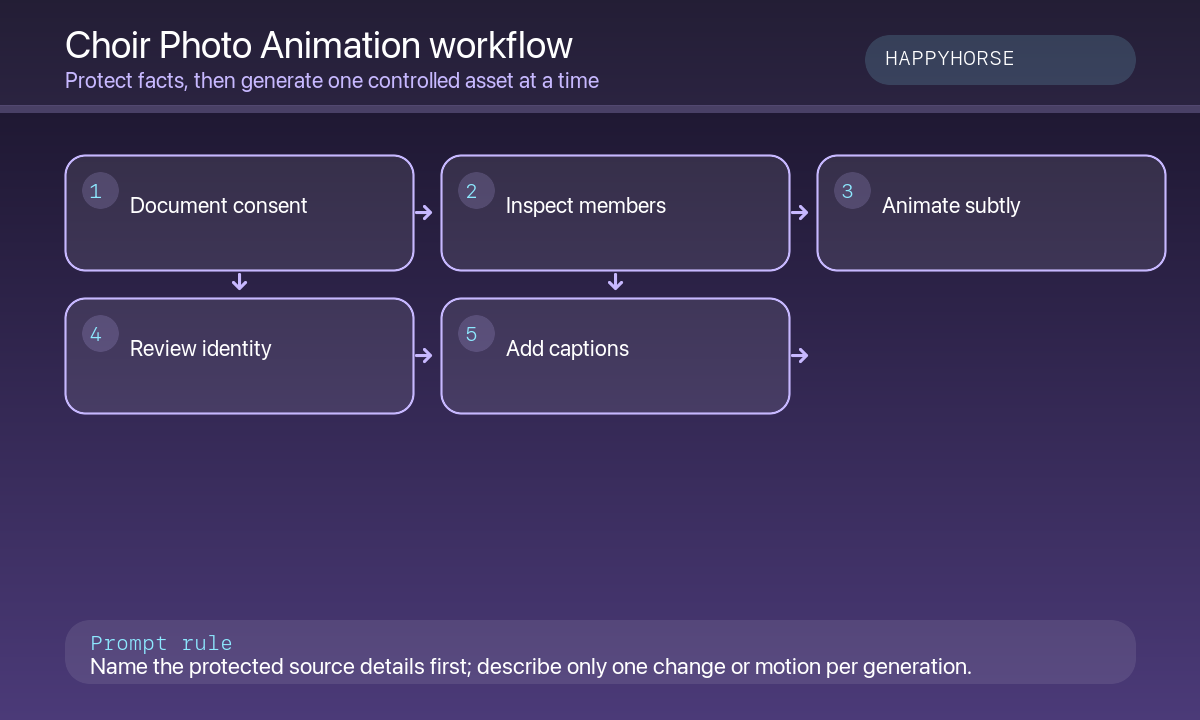
- Confirm written consent and usage scope for every identifiable adult, minor, staff member, and conductor.
- Select the sharpest photo: faces visible, eyes open, hands stable, uniforms intact, and no motion blur.
- List protected identity elements row by row before writing the motion request.
- Generate one subtle motion test; do not request singing mouths, arm choreography, or camera moves.
- Review every face at full and slow speed for identity drift, duplicated features, melting collars, and flickering folders.
- Add accurate captions, program credits, copyright, consent-based distribution limits, and accessible text in post.
Example prompt variants
- Five-second medium shot: the full choir breathes naturally with a few blinks, conductor and folders remain still, locked camera and stage light; no mouth opening or sound.
- Four-second anniversary highlight: only the front row sways very slightly, all faces and uniforms unchanged; no added confetti, text, logo, or new person.
- Five-second recruitment loop: the conductor gives one small preparatory gesture while choir members remain still, preserve stage and crop; no singing, voice, or choreography.
Quality checklist
- Consent, guardian permission, distribution scope, and expiration are documented for every identifiable person.
- Each member remains recognizable in the same row, uniform, hairstyle, and pose.
- Eyes, mouths, teeth, hands, folders, collars, and background lines do not morph.
- No synthetic voice, singing claim, added participant, event claim, or logo appears.
- Captions, credits, copyright, privacy limits, accessibility, and approvals are editable and traceable.
Mistakes to avoid
- Animating a group photo without consent from every identifiable member or guardian.
- Requesting open mouths or singing motion, which increases uncanny face artifacts.
- Allowing one person’s expression or uniform to overwrite a neighbor.
- Publishing to a public channel when consent covers only internal or seasonal use.
Related AIBase pages
Practical next step
Open the most relevant AIBase generator, run one narrow prompt first, and save the best result before adding more constraints. The fastest way to improve output quality is to compare one variable at a time: subject, camera, background, lighting, then final polish.