
Seedream 5.0 Lite YouTube End Screen Background Prompts
Generate crop-safe 16:9 end-screen foundations with protected zones for the next video, subscribe action, playlist, and channel branding.
Quick answer
Generate a text-free 16:9 background, then leave YouTube’s required safe areas clear for two video slots, the subscribe element, and optional playlist or channel links. Build a simple visual endpoint that matches your channel system, add real titles and branding in your editor, and preview mobile and TV cropping before publishing.
Who this guide is for
YouTube creators, course publishers, product teams, and agencies producing consistent outros without distracting from end-screen elements.
Recommended model
| Use case | Recommended model | Why |
|---|---|---|
| This workflow | Seedream 5.0 Lite for fast ratio-safe background families | It is well suited to quickly testing coordinated 16:9 backgrounds while keeping text and interactive elements outside generated pixels. |
AIBase is an independent creative platform. Model names are shown only to identify supported underlying technologies and workflow choices.
Prompt template
Create a text-free 16:9 YouTube end-screen background for [channel topic]. Mood: [specific]. Keep a calm central-to-left visual endpoint, generous empty space for two landscape video frames on the right, one subscribe-safe zone at lower left, and no detail at the outer crop edges. Use [palette, texture, light direction, and depth] that connect to the video subject. No words, letters, numbers, arrows, logo, subscribe icon, play button, face, platform symbol, watermark, or misleading result.
Step-by-step workflow
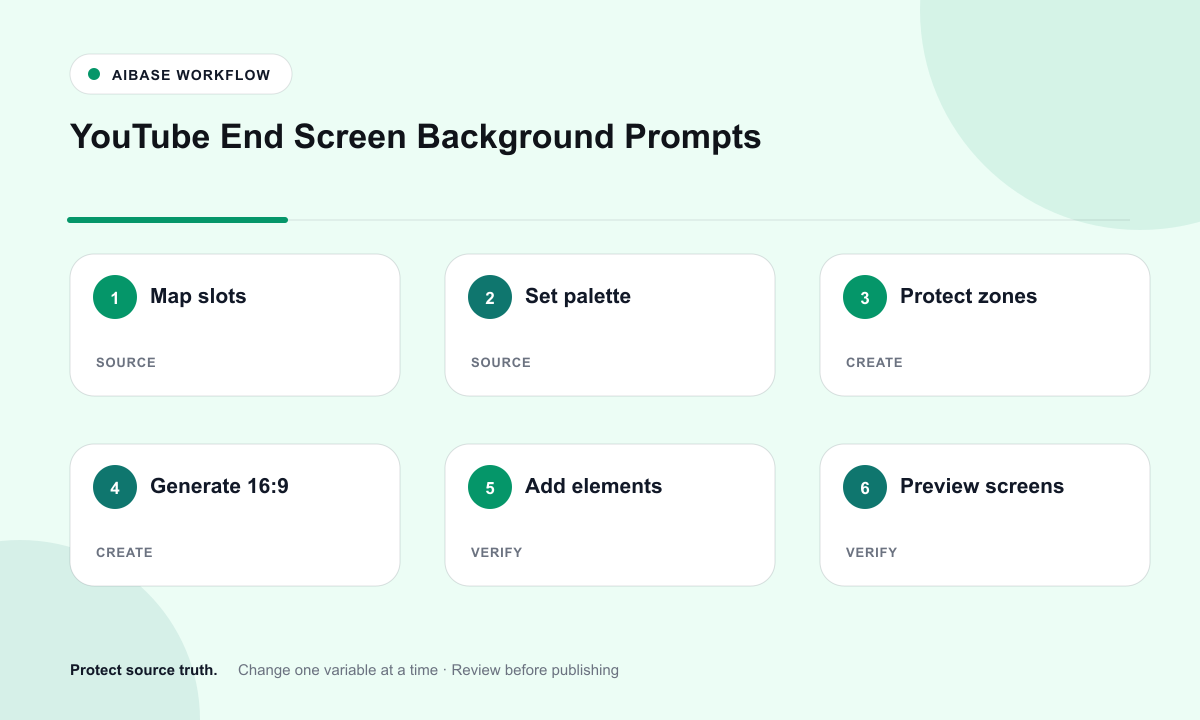
- Choose the end-screen template first and record the exact YouTube safe zones for video, subscribe, playlist, and channel elements.
- Define the video topic, palette, light direction, and one simple visual endpoint that will not compete with thumbnails.
- Generate several text-free 16:9 backgrounds with protected rectangles and conservative edge detail.
- Place the real end-screen elements in the video editor; add approved titles, channel mark, captions, and CTA as editable layers.
- Preview desktop, mobile, TV, light, dark, and autoplay framing; check contrast against both dark and bright video thumbnails.
- Save the background and placement template so future episodes need only a topic-specific palette update.
Example prompt variants
- Quiet deep-blue gradient with a soft horizon line and low geometric clouds; right two-thirds remains nearly flat for two video frames, no text or symbols.
- Warm paper texture with a subtle diagonal shadow and one small botanical form at lower left; clear central and right zones, no logo or subscribe cue.
- Dark studio backdrop with a faint product-table silhouette and controlled rim light; left and right interactive areas stay low-contrast and uncluttered.
Quality checklist
- YouTube interactive elements remain clickable and are not obscured by busy texture or high-contrast edges.
- The background contains no generated words, pseudo-text, numbers, play icons, subscribe cues, or platform symbols.
- End-screen safe areas survive desktop, mobile, TV, and rounded-corner crops.
- The visual endpoint matches the channel system without overwhelming the next-video thumbnails.
- Real titles, captions, branding, links, and accessibility text remain editable and current.
Mistakes to avoid
- Generating “subscribe” or fake video frames inside the background where YouTube cannot update them.
- Placing bright detail or a subject’s face directly under an end-screen thumbnail.
- Designing only for desktop and losing the layout to TV overscan or mobile cropping.
- Changing the visual system every episode until the channel loses recognition.
Related AIBase pages
Practical next step
Open the most relevant AIBase generator, run one narrow prompt first, and save the best result before adding more constraints. The fastest way to improve output quality is to compare one variable at a time: subject, camera, background, lighting, then final polish.