
Seedream 5.0 Lite Course Thumbnail Background Prompts
Draft text-free online course thumbnail backgrounds with Seedream 5.0 Lite, then add exact instructor portraits, titles, lesson facts, and badges in layout.
Quick answer
Generate a simple text-free background system, not a finished course cover. Reserve predictable zones for the approved instructor portrait, short lesson title, module label, and platform crop. Use one visual metaphor per course family and vary color or a small motif by module. Add all words, portraits, logos, accreditation, ratings, and lesson facts as controlled layers after generation.
Who this guide is for
Course creators, instructional designers, learning teams, coaches, and education marketers building a consistent thumbnail family for a course catalog, lesson library, cohort launch, or resource hub.
Recommended model
| Use case | Recommended model | Why |
|---|---|---|
| This workflow | Seedream 5.0 Lite | Fast generation supports broad art-direction exploration across a thumbnail series before the team commits to typography, exact portraits, platform-safe crops, and production templates. |
AIBase is an independent creative platform. Model names are shown only to identify supported underlying technologies and workflow choices.
Prompt template
Create a text-free [16:9 / square / portrait] online course thumbnail background for [topic] and [learner level]. Visual metaphor: [one concrete object or scene]. Style: [editorial / geometric / practical studio], palette: [specific], contrast: [specific]. Reserve a clean title zone at [location], approved instructor portrait zone at [location], small module-label zone at [location], and keep the shared crop-safe center uncluttered. Use one focal object and simple depth. Do not generate words, letters, numbers, diagrams with labels, UI, instructor faces, people, logos, badges, certificates, ratings, claims, platform marks, or tiny decorative detail. Return a reusable background plate for editable layout.
Step-by-step workflow
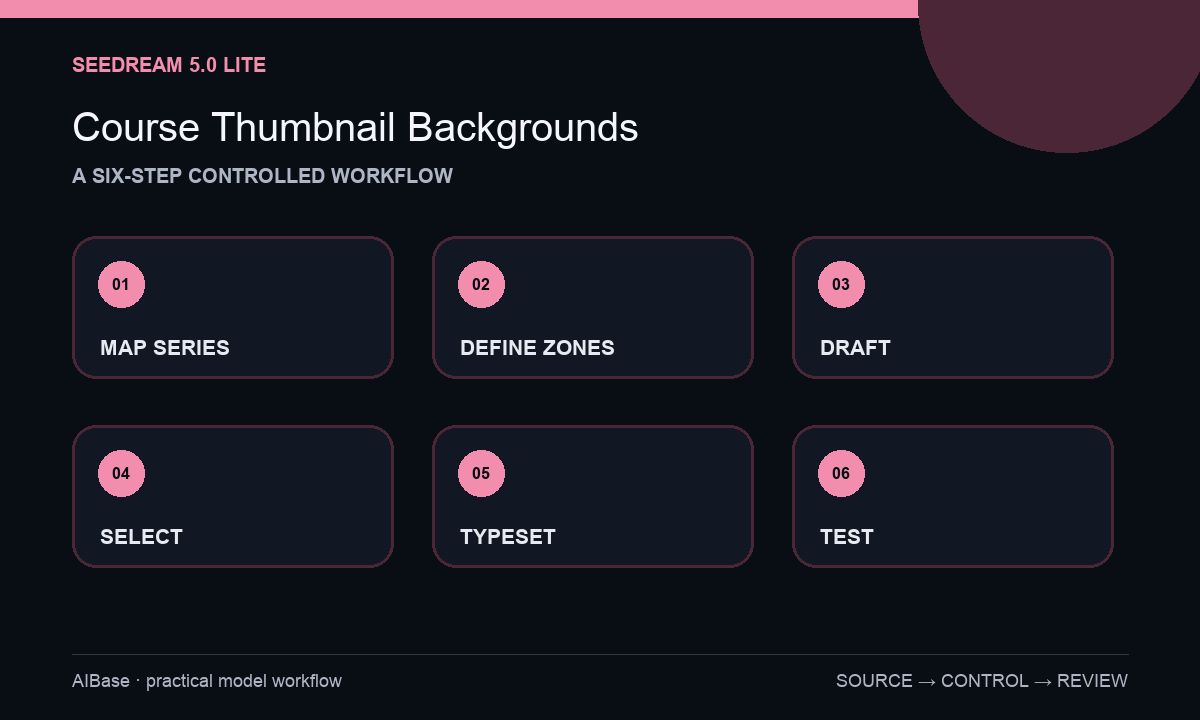
- Inventory course name, audience, level, modules, lesson-title lengths, instructor assets, brand kit, platform sizes, localization needs, accessibility rules, and approval owners.
- Define a series system with one composition grid, one type area, one portrait area, one motif family, and a controlled palette rule for modules or skill levels.
- Generate three text-free background directions for the hardest lesson title and smallest platform crop, varying only metaphor, spatial depth, or color strategy.
- Select the clearest direction, create the full background set, and reject near-duplicates or metaphors that imply unsupported outcomes, credentials, or difficulty.
- Add exact instructor portraits, title, module number, logo, and approved badges in a layout tool; keep text live and use a template rather than regenerating each lesson.
- Test at feed size and mobile size for title legibility, face crop, contrast, module distinction, localization room, file weight, alt text, and catalog consistency before export.
Example prompt variants
- Text-free 16:9 beginner spreadsheet course thumbnail background, one clean grid of translucent cells flowing toward a simple chart shape without labels, deep green and cream palette, wide title zone left and portrait zone right, no UI, numbers, words, logo, or badge.
- Text-free square leadership lesson background, one bridge-building metaphor made from simple paper forms, warm navy and coral palette, calm center crop and editable title zone upper left, no person, quote, credential, book title, or text.
- Text-free portrait course cover for practical food photography, one tabletop light beam and neutral plate silhouette, charcoal and soft apricot palette, instructor zone lower right and long-title area upper half, no camera brand, food claim, lettering, or generated face.
Quality checklist
- The visual metaphor matches the lesson topic without promising certification, income, mastery, speed, or another unsupported outcome.
- Title, module label, portrait, logo, and badge zones remain clear across every required crop and language length.
- All words, instructor images, course facts, ratings, credentials, and platform marks are exact controlled layers rather than generated pixels.
- The series looks related at a glance while module color and motif differences remain distinguishable at small size.
- Template, prompts, background plates, portrait rights, copy approvals, accessibility review, and exports remain traceable.
Mistakes to avoid
- Generating a complete thumbnail with title text and spending time correcting invented letters instead of typesetting once in a template.
- Using a different visual style for every lesson and losing course-family recognition in the catalog.
- Adding too many icons, charts, screens, and objects until the title has no clean space at mobile size.
- Using a generated instructor lookalike, credential, review score, certificate, or outcome cue that was never approved.
Related AIBase pages
- Open Seedream 5.0 Lite
- Create YouTube thumbnail backgrounds
- Create webinar promotion backgrounds
- Create lead magnet covers
Practical next step
Open the most relevant AIBase generator, run one narrow prompt first, and save the best result before adding more constraints. The fastest way to improve output quality is to compare one variable at a time: subject, camera, background, lighting, then final polish.