
Nano Banana 2 Prompts to Correct Mixed Light in Product Photos
Correct mixed warm and cool lighting in a product photo with Nano Banana 2 while preserving SKU color, material response, labels, shadows, and a defensible reference target.
Quick answer
Photograph or retain a trusted color target, define which regions carry the warm and cool casts, and ask Nano Banana 2 to neutralize illumination without recoloring the SKU. Protect printed colors, material highlights, transparent parts, contact shadows, and the background separately; approve the edit against the physical sample or calibrated reference, not memory or a pleasing thumbnail.
Who this guide is for
Ecommerce studios, marketplace sellers, product photographers, retouchers, and catalog teams correcting tabletop images lit by mixed window, ceiling, display, or practical lights.
Recommended model
| Use case | Recommended model | Why |
|---|---|---|
| This workflow | Nano Banana 2 image-to-image | Mixed-light correction is a bounded reference edit: the source geometry and product identity stay fixed while local illumination and white balance are normalized. |
AIBase is an independent creative platform. Model names are shown only to identify supported underlying technologies and workflow choices.
Prompt template
Use the uploaded authorized product photo as the exact source and [gray card/calibrated packshot/verified physical sample] as the color target. Correct only the mixed [warm cast region] and [cool/green cast region] so neutral surfaces become neutral and illumination reads as one coherent [daylight/studio] setup. Preserve the exact SKU silhouette, dimensions, perspective, crop, printed color values, label layout, text, logo, finish, grain, transparency, reflections, specular highlights, contact shadow, packaging, props, and background tone. Keep natural material-dependent color variation and realistic highlight-to-shadow transitions. Do not recolor the product, whiten colored surfaces, flatten texture, erase reflections, invent details, relight from a new direction, change exposure globally, add text, or retouch damage.
Step-by-step workflow
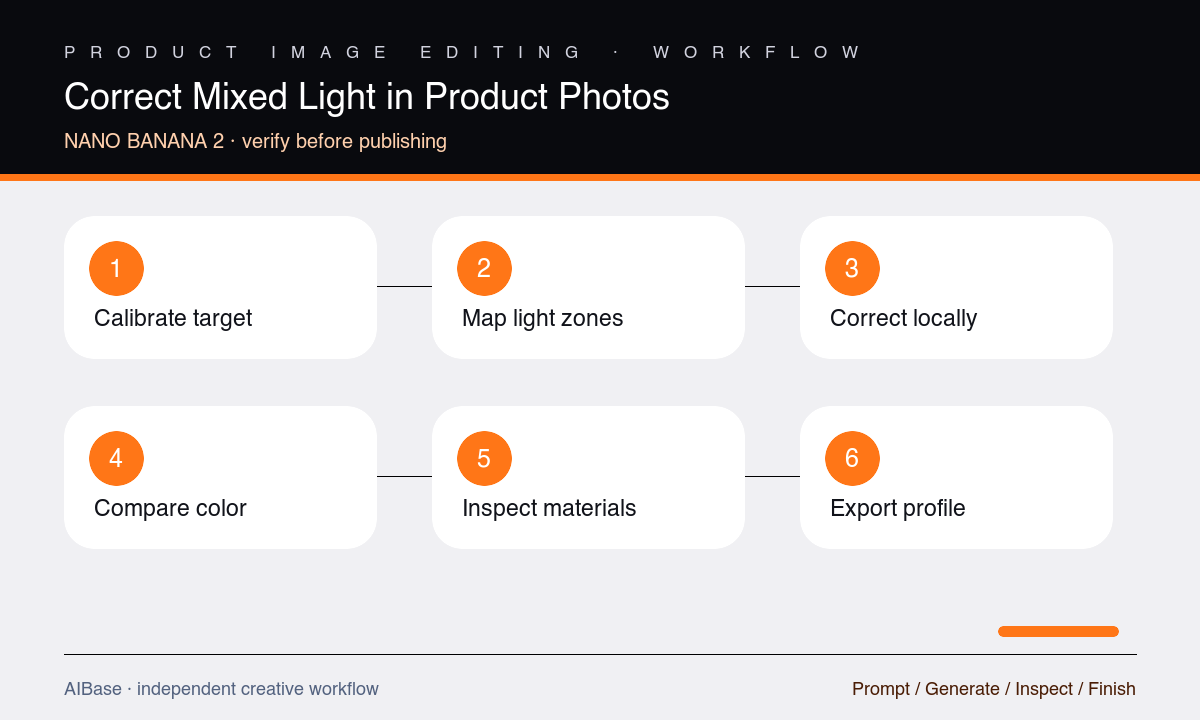
- Choose a trustworthy color reference and note the intended output profile, marketplace background rule, SKU colorway, material behavior, and approval owner.
- Mark neutral objects and the boundaries of each light source, separating illumination casts from intentional product color, reflections, transparency, and metallic highlights.
- Request local cast correction only, beginning with the dominant contaminating light and leaving geometry, labels, shadows, and the unaffected zone protected.
- Compare the result beside the calibrated reference at equal brightness, then correct one remaining region rather than applying a broad beautify or vivid-color instruction.
- Inspect label edges, gradients, translucent parts, metal, white-on-white boundaries, contact shadows, background neutrality, and color consistency across the catalog set.
- Export in the required color space, retain the source and target, and verify the final image on the live product page against an approved physical sample.
Example prompt variants
- Neutralize the warm ceiling-light cast on the right half of this white appliance while matching the daylight-balanced left half; preserve the blue control panel, printed markings, brushed metal, highlights, shadow, crop, and background.
- Remove the green fluorescent cast from the clear skincare bottle and white label only where contaminated, using the calibrated packshot as color truth; preserve transparent liquid tint, cap finish, readable copy, refraction, and contact shadow.
- Balance the cool window reflection and warm practical light on this leather wallet so the verified brown color remains consistent; preserve grain, edge paint, stitching, embossed logo, folds, highlights, and tabletop tone.
Quality checklist
- Neutral targets are neutral without forcing verified product colors, liquid tints, reflective metals, or environmental reflections toward gray.
- SKU silhouette, colorway, labels, logos, text, materials, finish, texture, transparency, seams, edges, crop, and perspective match the source.
- Light direction, highlight shape, shadow density, contact, gradients, and background tone remain physically coherent after local correction.
- The image matches the calibrated target and neighboring catalog assets in the intended output profile, not only one uncalibrated screen.
- Source, reference target, prompt, output profile, reviewer, and approval decision are retained for future SKU consistency checks.
Mistakes to avoid
- Using make the colors accurate without identifying a calibrated target or distinguishing product color from illumination.
- Applying one global white-balance change that fixes the background but shifts the verified SKU color and transparent contents.
- Removing all reflections and gradients from glossy, metallic, translucent, or textured materials until they look synthetic.
- Approving on a bright phone screen without comparing the result to the physical sample, source file, and catalog color standard.
Related AIBase pages
- Open Nano Banana 2 image-to-image
- Remove glare from a product photo
- Add a realistic product shadow
- Create product color variants
Practical next step
Open the most relevant AIBase generator, run one narrow prompt first, and save the best result before adding more constraints. The fastest way to improve output quality is to compare one variable at a time: subject, camera, background, lighting, then final polish.